
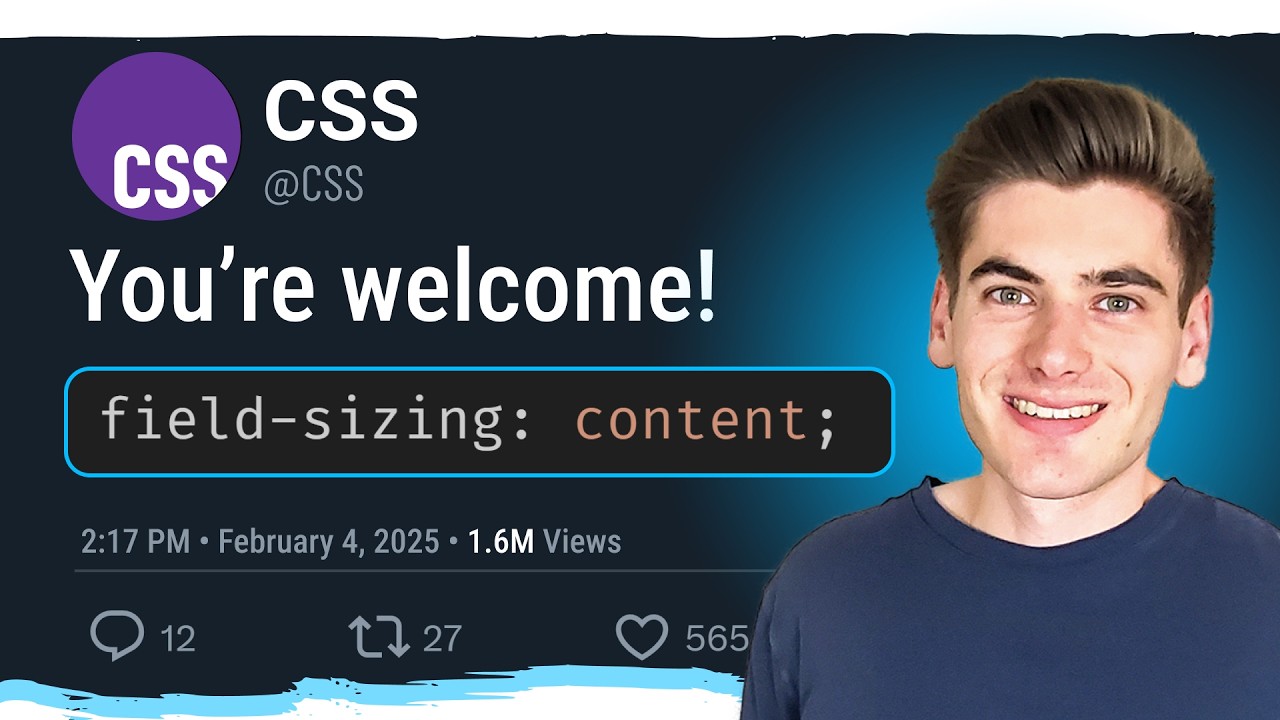
This CSS Property Replaces Hundreds of Lines of Code
Resumo
O vídeo aborda a introdução de uma nova propriedade CSS chamada "field sizing", que simplifica o processo de ajustar dinamicamente o tamanho de inputs com base no conteúdo, algo que anteriormente exigia muitas linhas de código JavaScript. Kyle, do canal Web Dev Simplified, demonstra como essa propriedade pode substituir scripts complexos por apenas uma linha de código CSS.
A propriedade "field sizing" possui dois valores: "fixed", que é o padrão, mantendo o tamanho fixo do elemento, e "content", que permite que o elemento se ajuste ao tamanho do conteúdo. Kyle mostra como essa propriedade afeta diferentes tipos de inputs: campos de texto, caixas de seleção e áreas de texto. Destaca que, ao aplicar "content", os elementos podem encolher ao tamanho mínimo necessário, a menos que sejam definidas larguras mínimas e máximas.
Ele explica que a utilidade da propriedade é mais evidente em áreas de texto, onde pode crescer tanto horizontal quanto verticalmente, ajustando-se ao conteúdo. Além disso, menciona a importância de definir larguras mínimas e máximas para evitar que os elementos cresçam além dos limites desejados.
Kyle também aborda questões de compatibilidade, esclarecendo que a propriedade atualmente é suportada apenas em navegadores baseados em Chromium, como Chrome e Edge, mas não em Firefox ou Safari. Isso torna a propriedade uma melhoria progressiva valiosa, onde sua ausência não prejudica a funcionalidade básica do formulário.
Por fim, ele promove seu curso CSS Simplified, que cobre desde conceitos básicos até os mais avançados e novos do CSS, recomendando-o para aqueles que desejam se aprofundar no aprendizado e domínio de CSS.
Chat
Entre para conversar com o vídeo.
EntrarPrincipais Pontos
A nova propriedade CSS 'field sizing' simplifica o ajuste dinâmico de tamanhos de inputs.
A propriedade 'field sizing' possui dois valores: 'fixed' e 'content'.
A propriedade é suportada apenas em navegadores baseados em Chromium.
Mindmap
Palavras-chaves
Transcrição
N/A this is incredibly difficult to build an input that grows in size based on the amount of content in it requires a ton of JavaScript and math and you're looking at hundreds of lines of code just to make this single input that is until the brand new CSS field sizing property came out which lets me do all of this complicated JavaScript in one single line of code in this video I'm going to show you what that property is all the different edge cases related to and the really cool things that it can do welcome back to web dev simplified my name is Kyle and my job is to simplify the web for you so you can start building your dream project sooner and to demonstrate how this property works I N/A just have a couple inputs on our page cuz it works differently with different types of inputs we have a standard text input and that's going to kind of take the place of like email and all the other standard text style inputs then we have a select box and finally we have a text area and right now the only CSS styles that I have being applied to this entire project is just some styles on the actual input group itself just to stack these vertically over top of each other but the actual input select and text area have absolutely no CSS being applied to them at all so now what I want to do is I want to add this brand N/A new property to show you how it works by default so we can select our input our select and our text area and all I'm going to do is add that field sizing property now this field sizing property takes two values fixed is the default where it's a fixed size element and then content is the new property that's being added to this and that essentially allows it to scale to the size of the content inside of it and I want I save you'll notice something kind of interesting happens our bio down here shrinks down to essentially one pixel wide it shrinks down to the exact same size as our cursor and that's the default Behavior if you don't have any width a minimum or maximum set on an element it's just going to shrink down to the smallest possible size for the element and if we have a placeholder you can see it shrinks down to the size of that placeholder but as soon as I put some text inside of here it's now just going to be exactly the same size as the text that I have inside of here and then of course when I have no text it'll be that placeholder size and then our select box here changed slightly you may not have noticed it but now no matter what element I select it's actually going to change the size of my select box to fit the size of that element while when I had this property the way it was before my select Box is always the size of my largest element inside of it so it's always going to be the same width as this moderator but when I say that the field sizing should be content it's not going to be based on whatever the size of the currently selected element is instead of the largest one now obviously this isn't super useful unless we actually give it some minimum and maximum sizes so generally what you're going to want to do if you want a normal input that expands in width you're going to want to give it a minimum width so we'll come in here with our input element and we'll say that we're going to have a minimum width and let's just say we want our minimum width to be 100 pixels now no matter what my element is always going to be at least 100 pixels wide and as I type inside of it as it gets larger than 100 pixels you can see the width of this container just grows and grows and grows and it's actually going to keep growing off the edge of my page I generally don't want that so a maximum width of 100% is probably something that you want so it stays within the bounds of its parent container now it'll always be at least 100 pixels wide and as I fill more content inside of it it's going to grow until eventually it's too large to fit in its container and then it'll actually become scrollable like like a normal input would be now personally I find that this field sizing content is only somewhat useful on standard inputs because generally you don't need scaling sized inputs they're just going to be 100% with all the time and again they're not super useful on select elements because I don't generally like the size of my select element changing based on the content inside of it I just want it to be one size all the time where this really comes in effect is the text area that's where I find this the most useful so let's come in here with a text area and see how this actually works because it not only grows horizontally but it'll also grow vertically as well so let's come in here we'll say our minimum width is 100 pixels and let's say our maximum width to just be 300 pixels so we can see this without me having to type in so much text so by default we just have one row of 100 pixel wide text and if we grow this past 300 pixels you can see it's going to wrap on the next line I can hit enter a few times and again it's going to wrap on to the next line and it's just going to constantly be wrapping and filling however much space I need you can see here my text area is just as large as it needs to be to fit my content and as soon as I delete it down you can see it shrinks down generally when I'm using a text area what I do is I just hard code the width to be something like 100% And now I just have a text area that grows in height based on how much content I have inside of it and a lot of times I may come in here with like a height of three RM and actually I want to make sure that's a minimum height so that I can grow beyond that and now it's going to look like a general text area but you can see it actually is able to grow beyond that based on the amount of content inside of it now this already covers a lot of the N/A content that you need to know about the field sizing property there's a few extra things you should probably know about it specifically related to some things with validation so let's say we have an input here and let's say I specify a Mac max length of 10 that means I can have at most 10 characters inside of here well this is actually going to use that property for field sizing and it's going to make sure it's stops growing as soon as I get to that maximum length so it's com in here 1 2 3 4 5 6 7 8 9 10 and as soon as I try to type anything else you notice my box is just going to stop at that exact size no matter what other content I try to type nothing else is going to get put inside of there and if I take a bunch of content that's much longer than 10 characters and I past it inside of here you see it's only keeping those first 10 characters and again a lot of that is to do with that max length property but again our size is never going to be larger than this particular max length cuz I can't put any additional content inside it here another really important N/A thing to note is how this actually works with browser support because right now it's only supported in chromian based browsers that means Chrome Edge and so on it's not supported in Firefox or Safari which is a bit of a bummer but the nice thing about this is in many cases this is considered a progressive enhancement imagine that you had a form just like this where you had a bio field that people could type some information inside of and normally if you didn't have your field site you know you would just have this minimum height of 3 RM maybe You' make it a little bit larger we'll say 5 RM and you can see we can type about five lines of text inside here before it has to create a scroll bar this is generally fine for most users but if they're using a chromium based browser and they have this field sizing property able to be used now this actual box can fill in whatever size they need based on the content they type inside of it so it's a really great Progressive enhancement where you can throw it into your site even if the person's browser doesn't support it it just pretends that this doesn't exist and you get a normal text area that Scrolls while if it does exist you can see you get this nice growing text area so this is a really great way to add this Progressive enhancement to a lot of different sites and you don't have to write tons of JavaScript to do this because in the past this would take hundreds of lines of JavaScript to do right and now it's just one single line of CSS now if you want to stay up to date with all the latest and greatest CSS features I highly recommend checking out my CSS simplified course it covers everything you need to know about CSS from an absolute beginner all the way up to Advanced and intermediate Concepts even bleeding edge brand new CSS Concepts I'm going to link that course down in the description for you again I highly recommend you check it out if you want to learn and master CSS with that said thank you very much for watching and have a good day